

lager arm command group. This interface allows users to interact with supported robot arms for a wide range of automation, testing, and calibration tasks—all from a terminal or in scripts.
The lager arm command enables you to:
- Enable or disable motors
- Move the arm to absolute or relative positions
- Return the arm to its home position
- Read and save the current arm position
- Query current position and adjust as needed
lager arm helps engineers, developers, and technicians integrate robot arm actions into repeatable test scripts.
Tip: Alllager armcommands require you to specify the Lager Box (DUT) using the--boxoption, e.g.--box my-lager-box.
In the following sections, you’ll find detailed explanations and usage examples for each command, as well as step-by-step guides for common workflows like calibration and troubleshooting.
Command Reference
move-by
Adjust Arm Position by Relative Deltas
Use lager arm move-by to move the robot arm by specified increments (deltas) along the X, Y, and Z axes. This is useful for fine adjustments or scripting stepwise movement patterns without calculating absolute coordinates.
Usage:
NETNAME— Name of the arm net to controlDX— Delta X in mm (optional, default: 0.0)DY— Delta Y in mm (optional, default: 0.0)DZ— Delta Z in mm (optional, default: 0.0)
--box TEXT— ID of the Lager Box (required)--timeout FLOAT— Move timeout in seconds (default: 5.0)--yes— Automatically confirm the action without interactive prompt--help— Show command-specific help
disable-motor
Deactivate the Robot Arm Motor
The lager arm disable-motor command safely disables (powers down) the motors of the arm, placing it in a deactivated state. This can be used before physical adjustments, for safety, or as part of a calibration/reset workflow.
Usage:
NETNAME— Name of the arm net to control
--box TEXT— ID of the Lager Box (required)--help— Show command-specific help
enable-motor
Activate the Robot Arm Motor
Use lager arm enable-motor to power up and enable the motors on the robot arm, making it ready for movement commands. This should be run before issuing any move commands if the motors are currently disabled.
Usage:
NETNAME— Name of the arm net to control
--box TEXT— ID of the Lager Box (required)--help— Show command-specific help
go-home
Move the Arm to Its Home Position
The lager arm go-home command returns the robot arm to its default home position (X=0, Y=300, Z=0). This is typically used to initialize or reset the arm before starting a new task, or after calibration.
Usage:
NETNAME— Name of the arm net to control
--box TEXT— ID of the Lager Box (required)--yes— Confirm the action without prompting--help— Show command-specific help
move
Move to an Absolute Position
The lager arm move command moves the robot arm to a specified absolute position in X, Y, Z space. This is the most direct way to position the arm precisely for a task or workflow.
Usage:
NETNAME— Name of the arm net to controlX— Absolute X coordinate in mm (required)Y— Absolute Y coordinate in mm (required)Z— Absolute Z coordinate in mm (required)
--box TEXT— ID of the Lager Box (required)--timeout FLOAT— Move timeout in seconds (default: 5.0)--yes— Confirm the action without prompting--help— Show command-specific help
position
Get Arm Position
The lager arm position command queries and prints the current position of the robot arm. This is useful for verifying the arm’s current coordinates before and after movements, or during calibration.
Usage:
NETNAME— Name of the arm net to control
--box TEXT— ID of the Lager Box (required)--help— Show command-specific help
read-and-save-position
Read and Save Arm Position
The lager arm read-and-save-position command reads the current position of the arm and saves it as the reference (zero or home) position. This is an essential step in calibration workflows and can help recover from errors or missed steps.
Usage:
NETNAME— Name of the arm net to control
--box TEXT— ID of the Lager Box (required)--help— Show command-specific help
set-acceleration
Set Arm Acceleration Parameters
The lager arm set-acceleration command configures the acceleration parameters for arm movements. This allows you to control movement speed and smoothness.
Usage:
NETNAME— Name of the arm net to controlACCELERATION— Acceleration value (minimum: 0)TRAVEL— Travel acceleration value (minimum: 0)RETRACT— Retract acceleration value (optional, default: 60)
--box TEXT— ID of the Lager Box (required)--help— Show command-specific help
Calibrating the Robot Arm
If the robot arm loses its position, gets stuck, or if you experience errors related to movement accuracy, you may need to reset the encoder values and recalibrate the arm. This ensures that the arm’s internal coordinate system is synchronized with its actual physical position.-
Disable the Arm Motors
Before adjusting the arm manually, disable the motors to prevent any accidental movement:
-
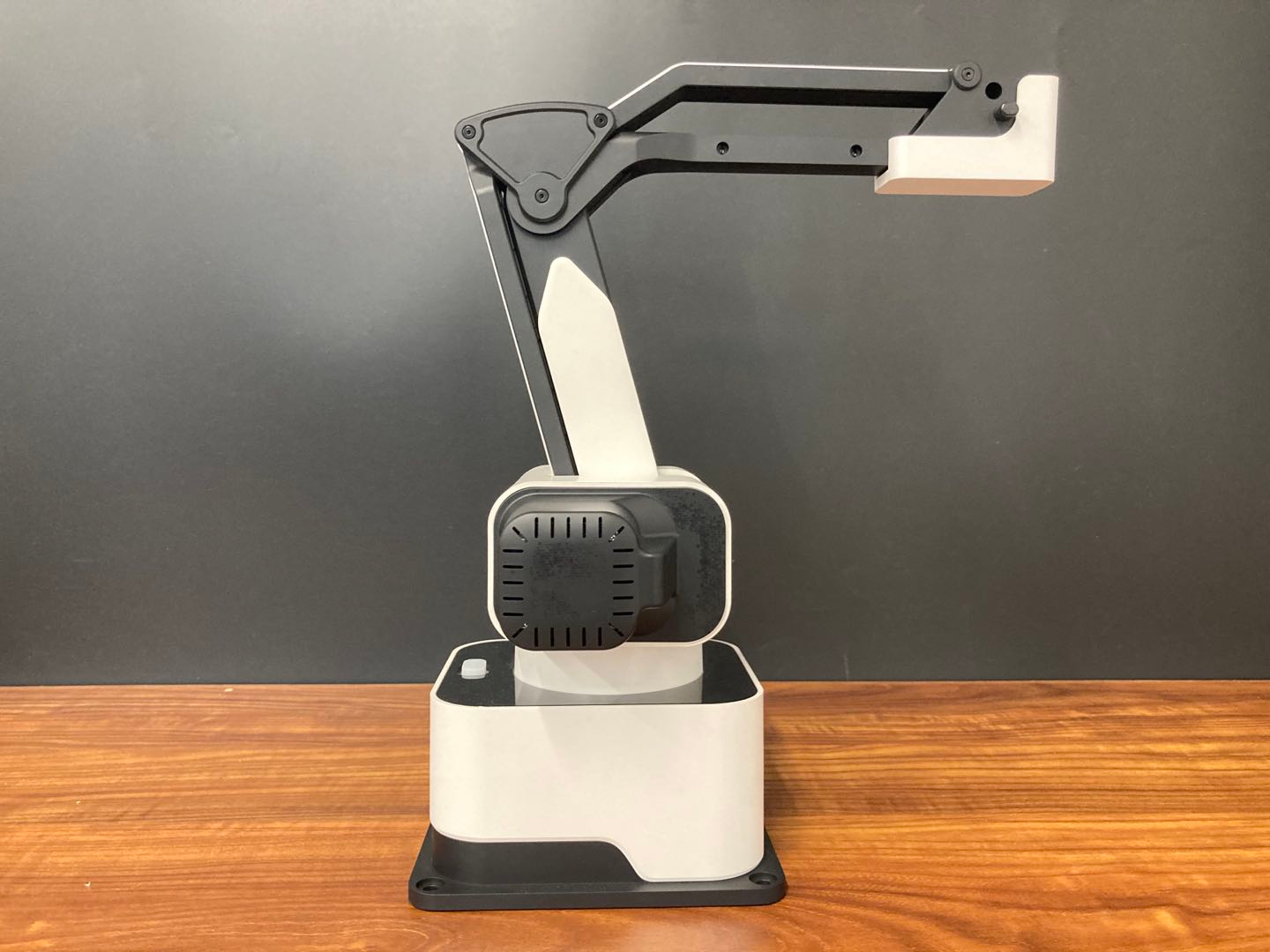
Manually Adjust the Arm to the Calibration Position
Move the arm by hand so that Axis 1 and Axis 2 are in their maximum positions, as shown below:
-
Read and Save the Current Arm Position
Save this manually-set position as the arm’s reference (zero) position:
-
Send the Arm to Its Home Position
Now return the arm to its programmed home position to complete the calibration:
- Calibration Complete The arm’s encoder values are now reset. The arm should move smoothly and report accurate positions. If you continue to experience issues, repeat the process or check for mechanical obstructions.
Troubleshooting Tips:
- Always disable the motors before physically moving the arm.
- Ensure no force is applied to the arm while motors are active.
- Use the
lager arm positioncommand at any time to verify current coordinates.
Example Calibration Sequence
This workflow will ensure that your robot arm is accurately calibrated and ready for precision automation.